Arrange the charts on a dashboard
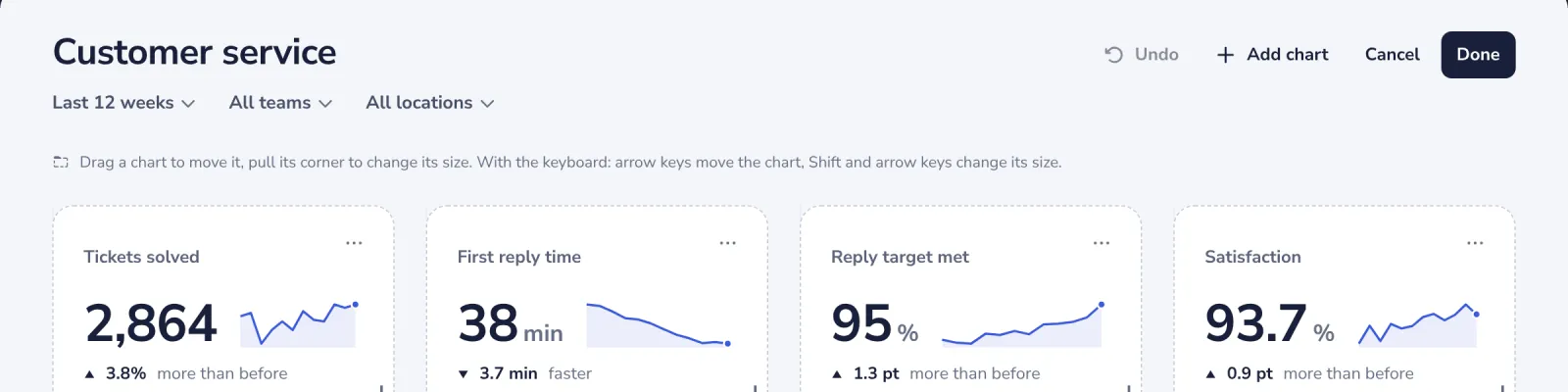
Put the charts that matter most at the top. Every change can be undone until you press Done, and Cancel leaves the dashboard as it was.
- 1
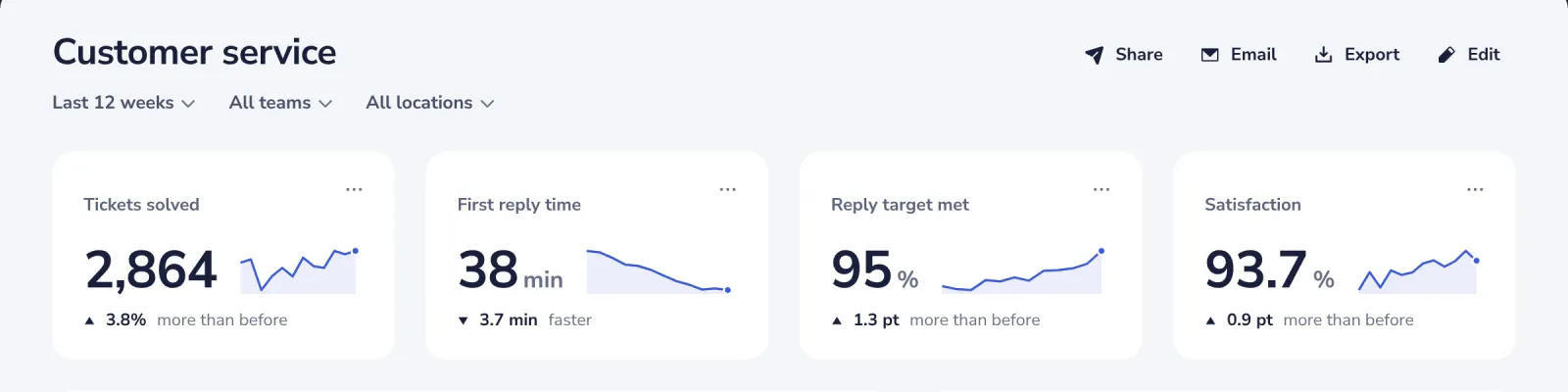
Press Edit
At the top of the dashboard. A dashboard shared with you can be changed only when you may edit it.
- 2
Drag a chart to move it
Hold a chart and drag it. A shadow shows where it lands, and the other charts make room.
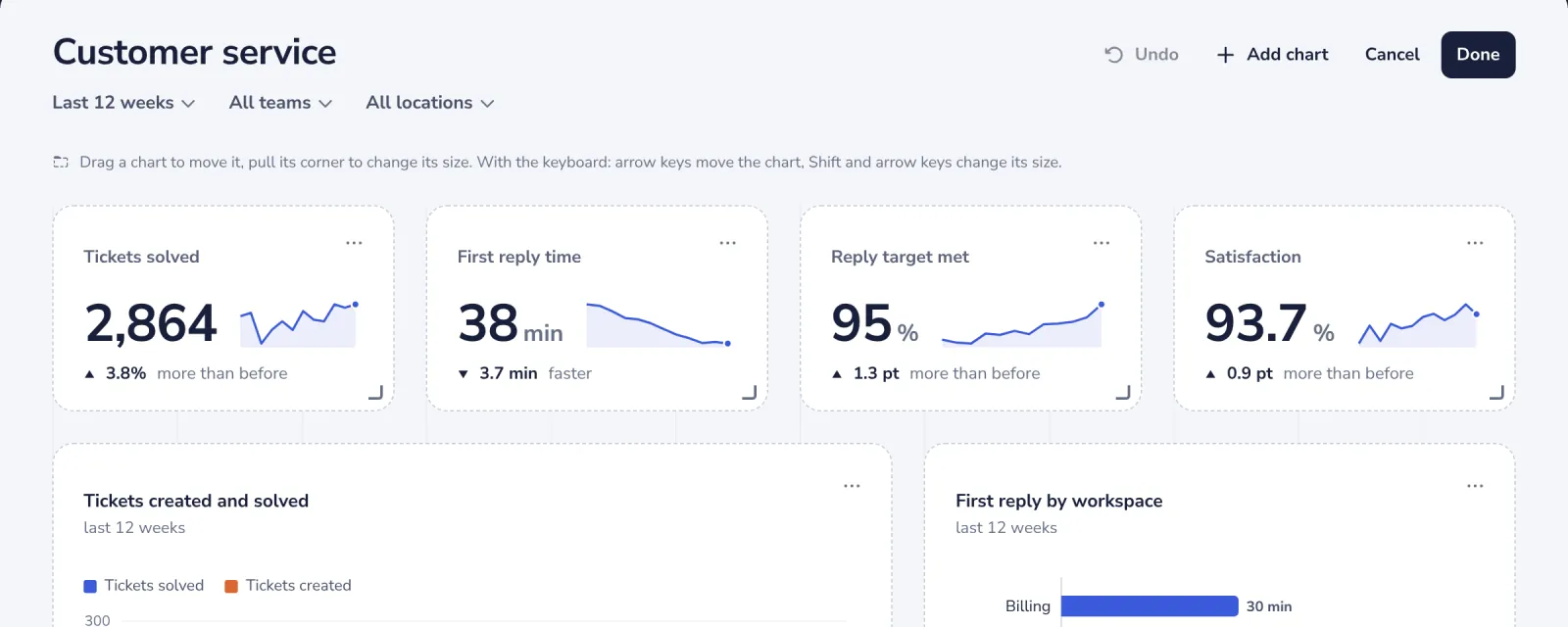
With the keyboard, press Tab until the chart is chosen, then use the arrow keys.
- 3
Pull the corner to change its size
The corner at the bottom right makes a chart wider, narrower, taller or shorter.
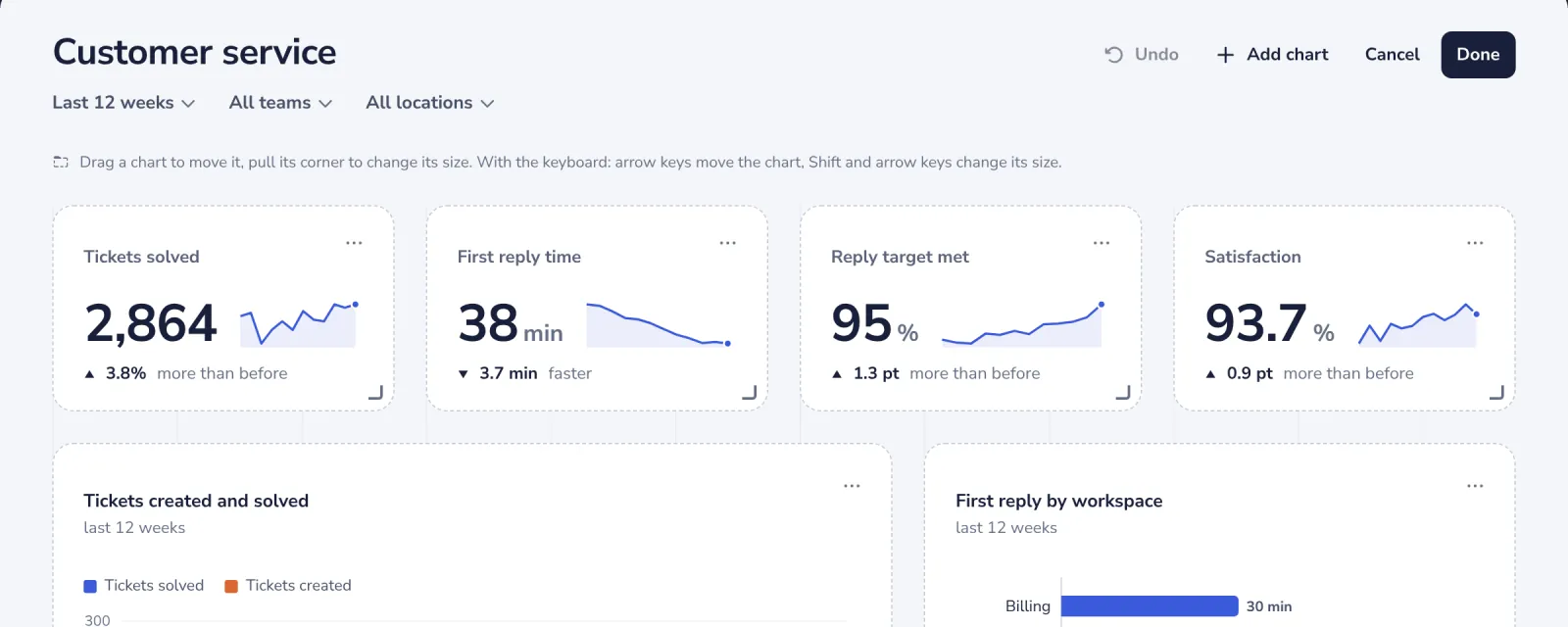
With the keyboard, hold Shift and use the arrow keys.
- 4
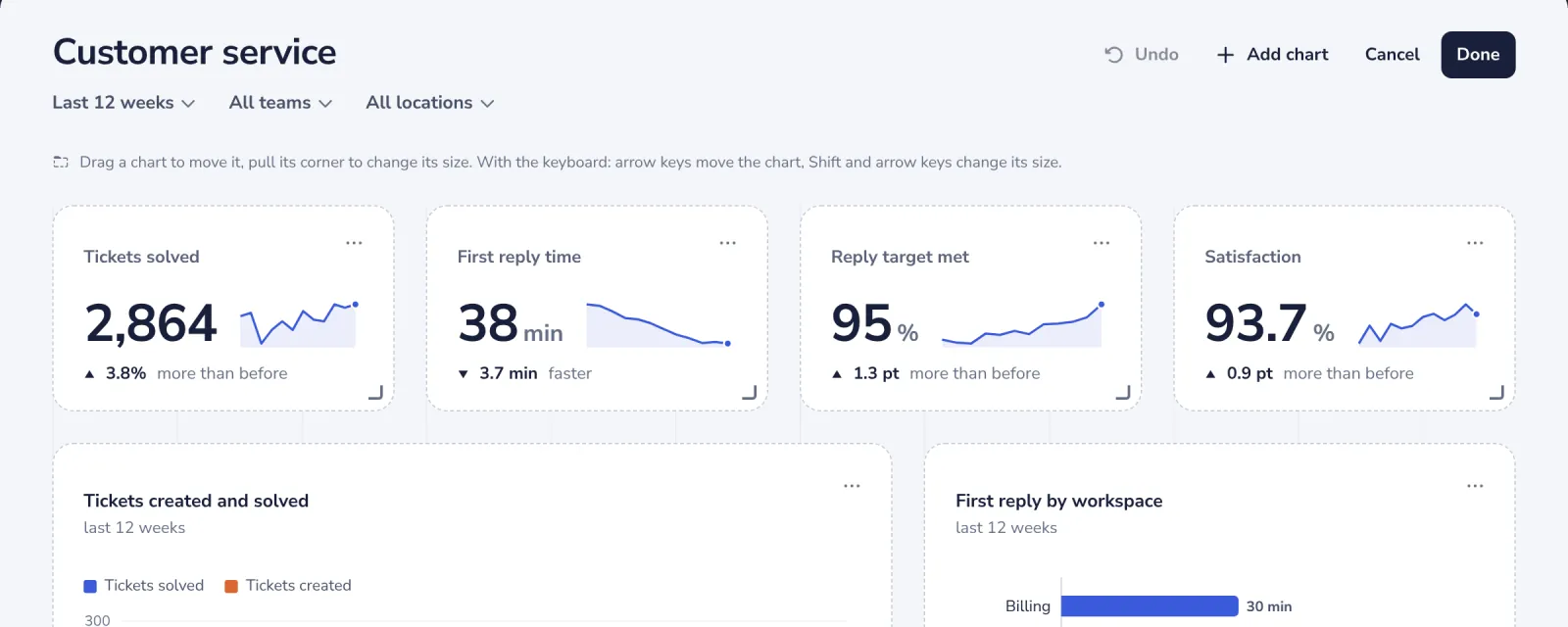
Remove a chart you do not need
Open the chart's three dots and press Remove from dashboard. Undo in the message brings it back.
- 5
Press Done
The new layout is saved for everyone who opens the dashboard. Undo takes back one change at a time.
Was this helpful?
What was missing?
Thank you.
We count yes and no per article. Nothing about you is stored.