Save time with macros
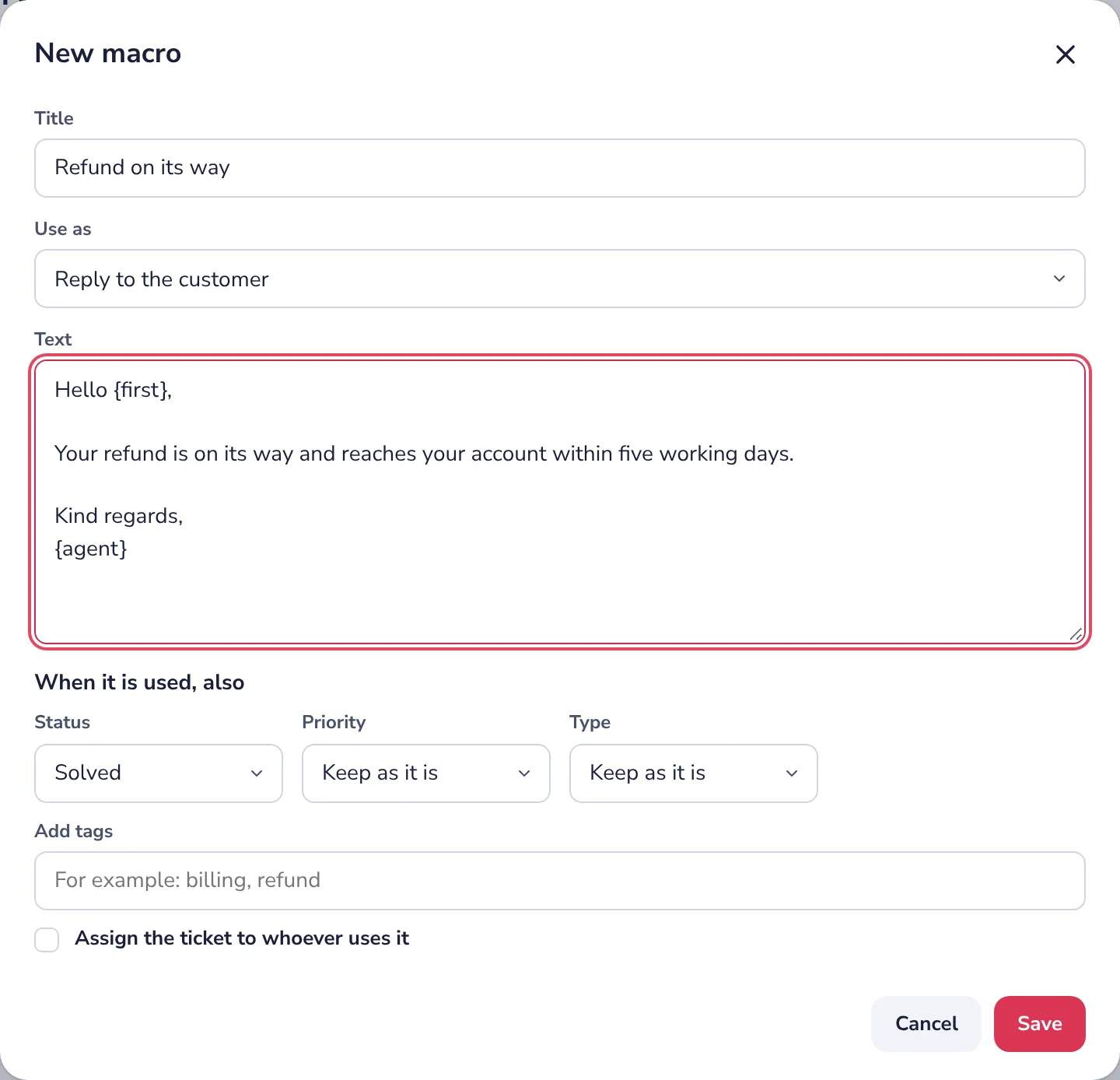
A macro is a saved reply or note. It fills in the customer's first name and yours, and it can also set the status, the priority or tags of the ticket when you send it. The admins of a workspace make them.
- 1
Open Macros in the settings
In Addresses and settings, the Macros tab of the workspace.
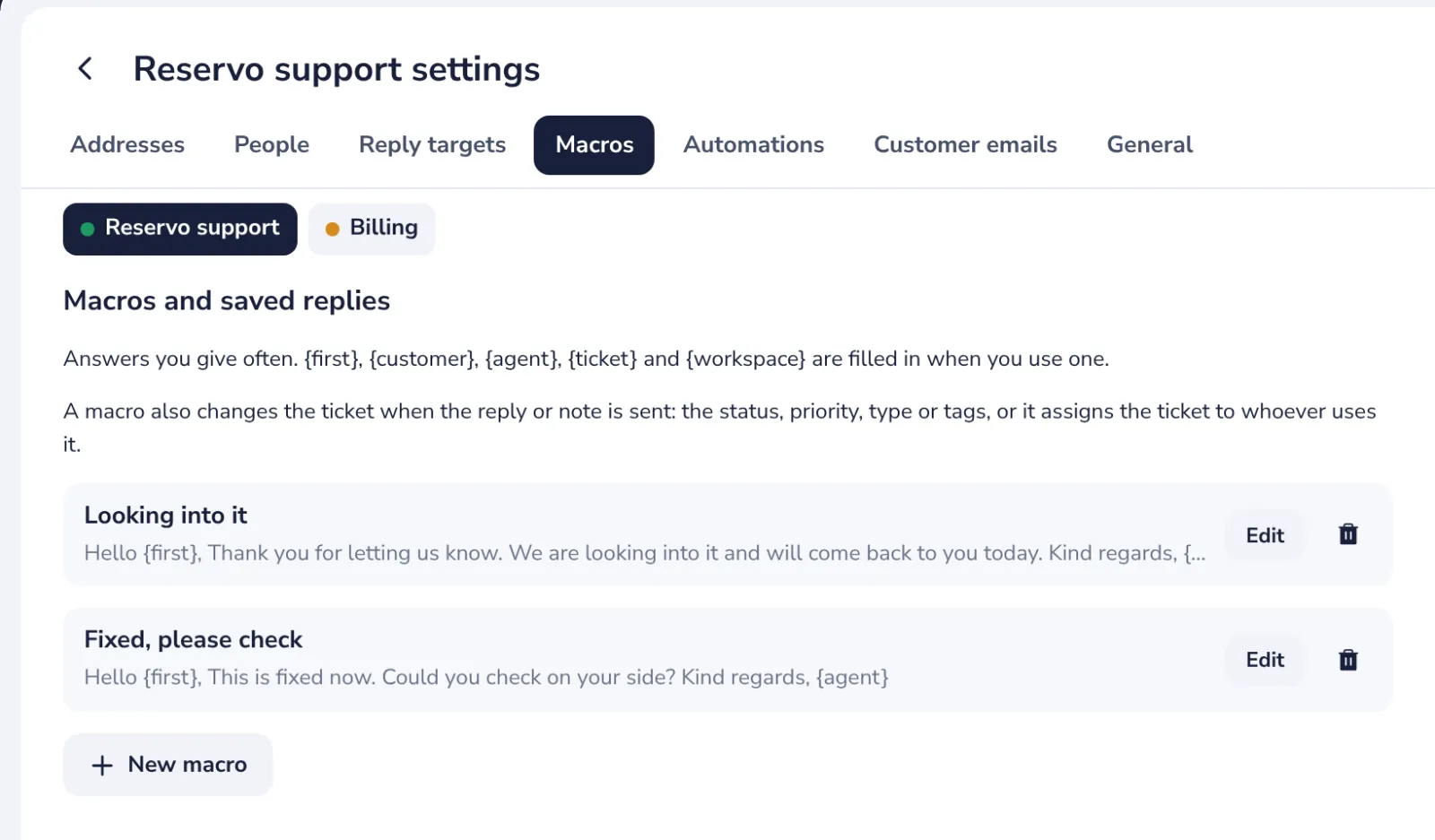
In a ticket, Macros and then New macro brings you here too.
- 2
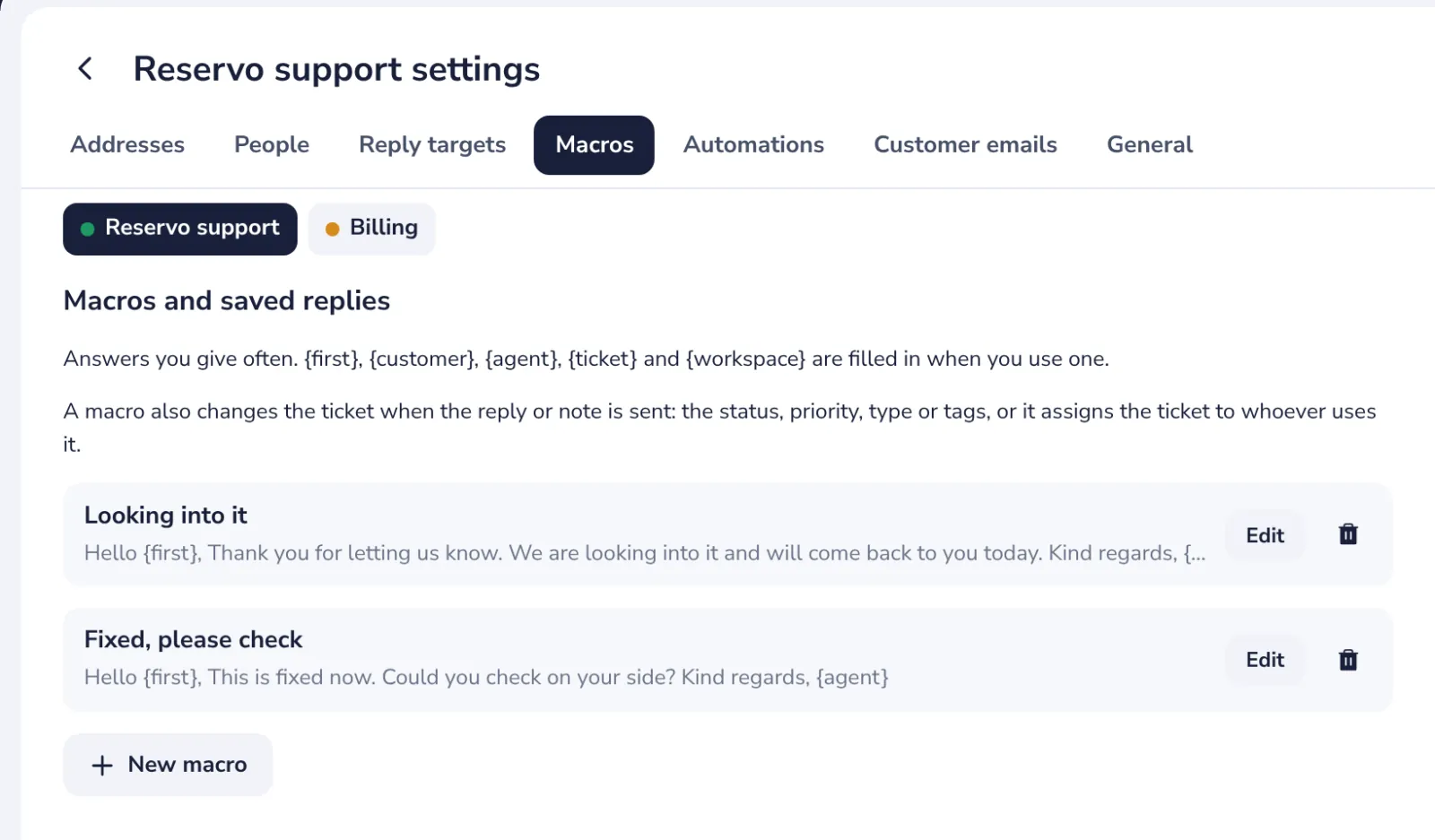
Press New macro
Below the macros you have.
- 3
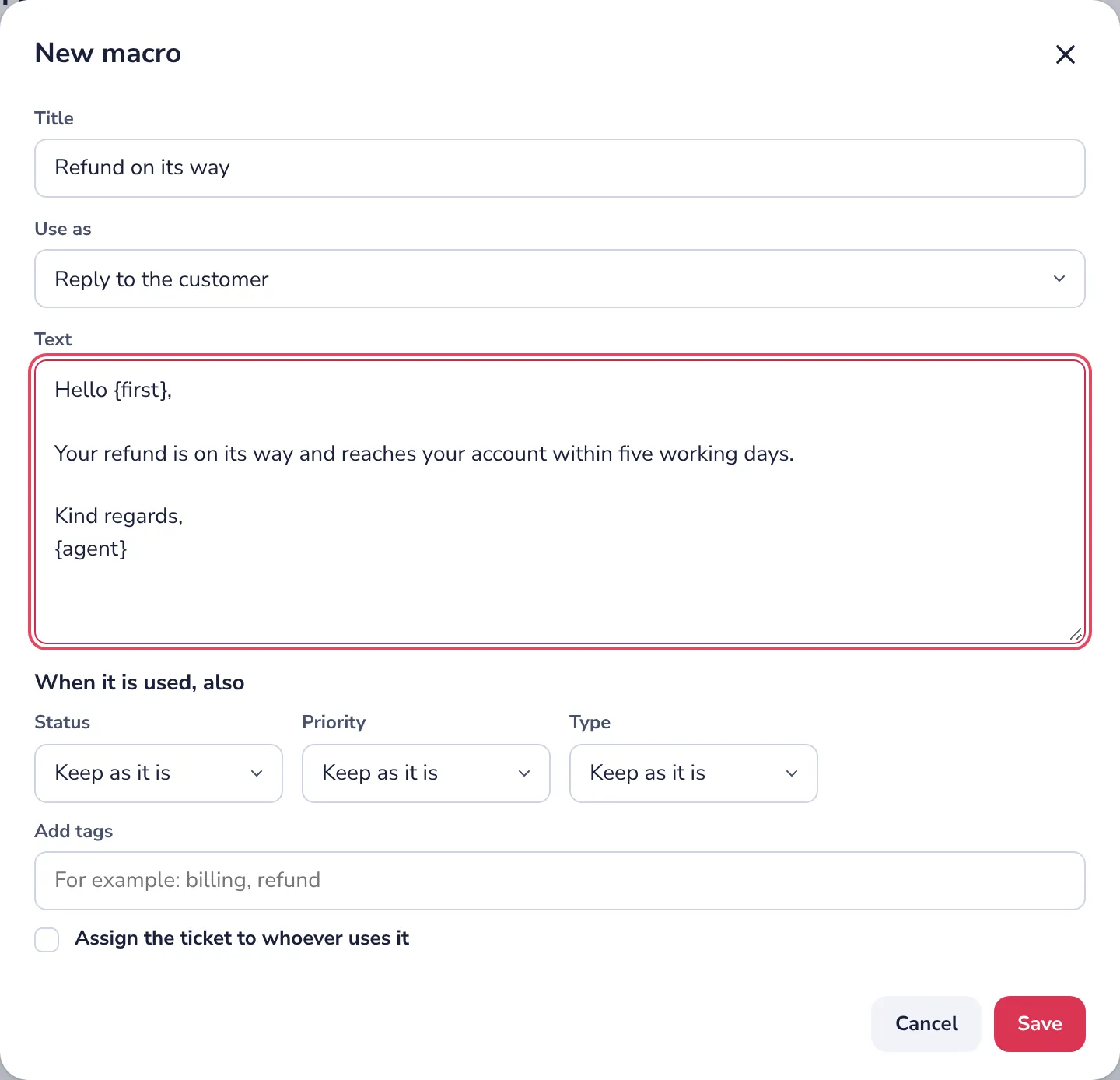
Write the answer
Give it a short title and write the text. {first} becomes the customer's first name, {agent} yours.
- 4
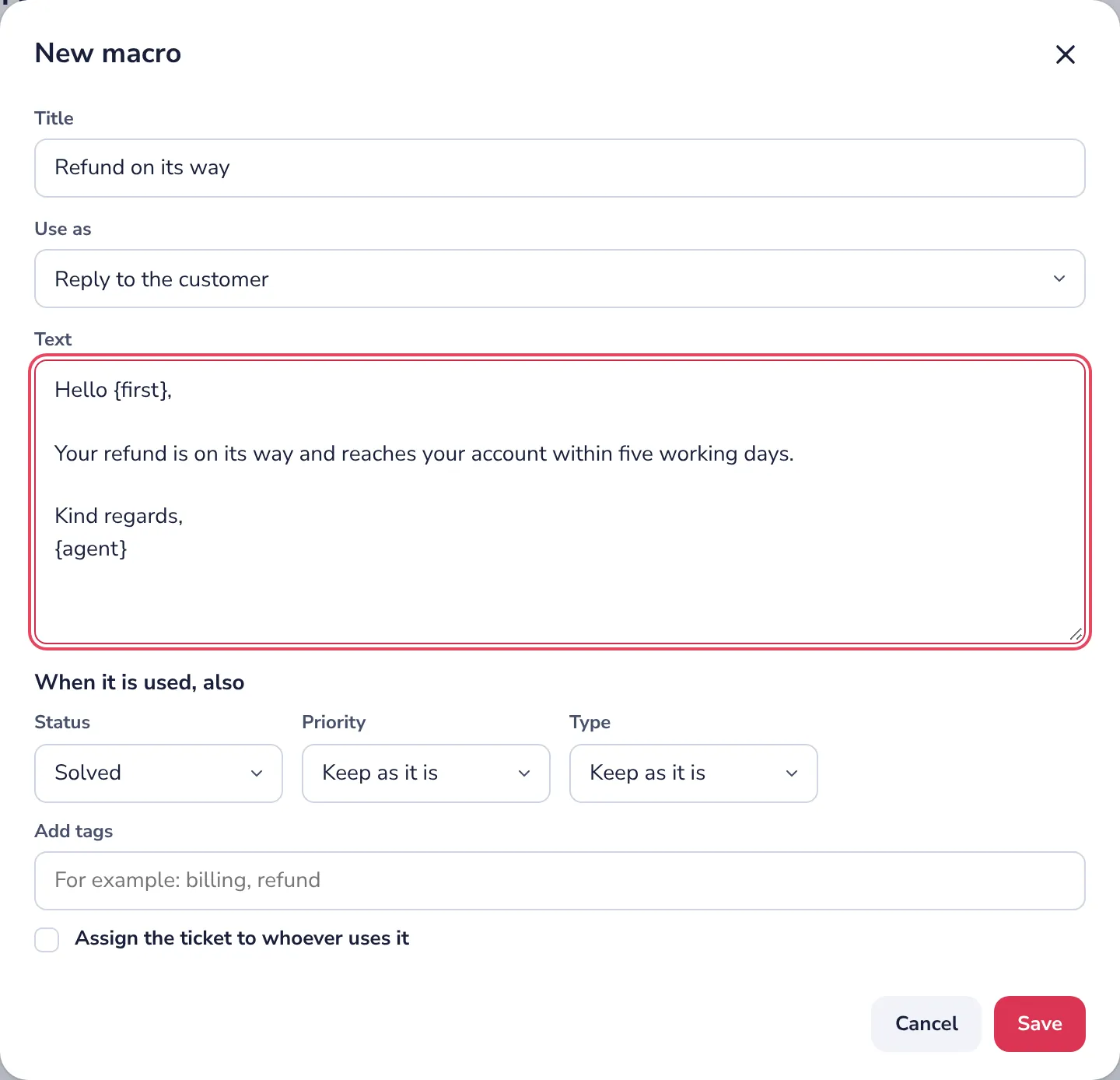
Choose what else it does
For example, set the status to Waiting on customer, add a tag or assign the ticket to you.
- 5
Press Save
Everyone in the workspace can use it now.
- 6
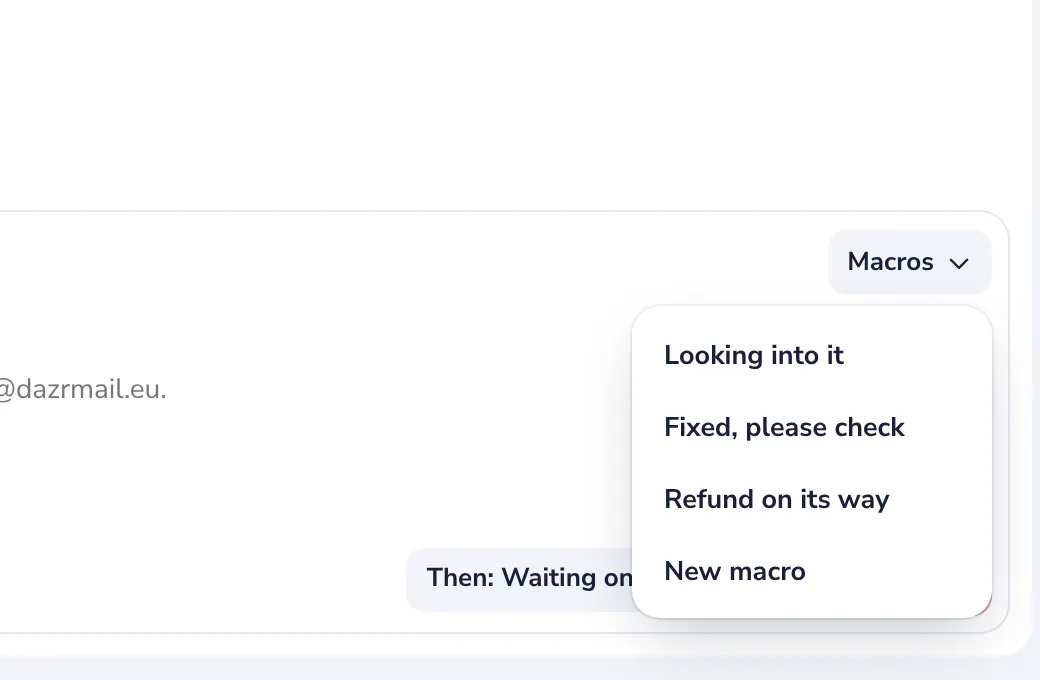
Use it in a ticket
Press Macros above the reply and pick one. Read it over, then send.
Was this helpful?
What was missing?
Thank you.
We count yes and no per article. Nothing about you is stored.